How to Edit a Screenshot Online in Under 2 Minutes


Updated at:
You do not need Photoshop or a desktop app to clean up a screenshot. With EditMyScreenshot, you can upload or capture an image, mark what matters, hide what should stay private, and download a finished file in under two minutes.
This guide walks through a fast path: open the editor, get your image on the canvas, make a few high-impact edits, then export. No signup is required for core editing, and exports do not add a watermark.
What you will need
- A browser on phone, tablet, or desktop
- A screenshot file (PNG or JPG) or permission to capture your screen
- About two minutes
Minute 1: get your screenshot into the editor
Step 1: Open the online screenshot editor
Go to the free Screenshot Editor. The page loads in your browser. You do not install software to start.
Step 2: Upload, paste, or capture
Pick the fastest option for you:
- Upload from files: choose a PNG or JPG from your device.
- Drag and drop: drop the image onto the upload area.
- Take a screenshot: use the capture control on the page, or start from Take Screenshot and continue into the editor.
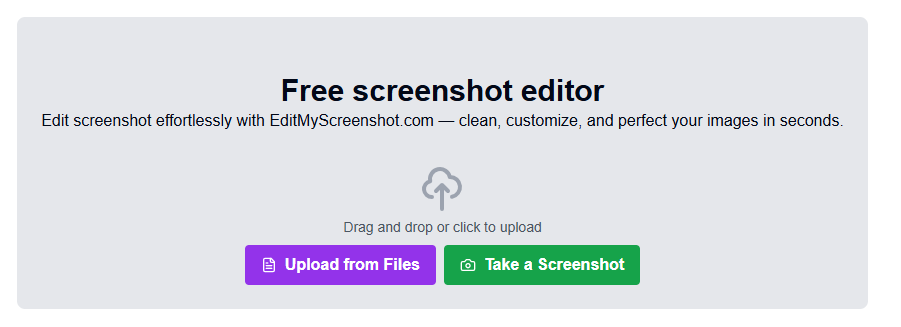
Once the image is on the canvas, you are ready to edit. That first minute is usually enough to get from blank page to a live screenshot.
Minute 2: edit, polish, and download
Step 3: Highlight what matters
Use the tools on the side panel for the job you have:
- Text: label a button, step, or error message.
- Highlight / arrows: point to the exact UI control someone should click.
- Brush: freehand marks when a quick scribble is clearer than a shape.
Keep labels short. One arrow and one line of text often beats a wall of notes.
Step 4: Blur private details
Before you share a bug report, support ticket, or social post, hide emails, tokens, names, or account IDs. Open the Blur tool, draw over the sensitive area, and adjust intensity if needed.
Blurring first saves you from scrubbing a public link later.
Step 5: Make it look finished (optional but fast)
If the screenshot is for a doc, landing page, or social post:
- Add a background (solid color or image)
- Apply a frame or device mockup
- Crop so the focus sits in the center
These polish steps take seconds and make the same capture look presentation-ready.
Step 6: Download or copy
When the canvas looks right:
- Download as PNG for sharp UI shots
- Download as JPG when file size matters more
- Use GIF when you added motion-friendly backgrounds or stickers
- Copy to clipboard when you want to paste straight into Slack, email, or docs
Signed-in users can also save to a personal gallery or workspace. Guests can still download without creating an account.
Ready to try it on your own screenshot?
Edit screenshot online nowA simple 2-minute checklist
- Open the screenshot editor
- Upload, paste, or capture
- Add text or an arrow to the key spot
- Blur anything private
- Optional: background or crop
- Download PNG or copy to clipboard
That sequence covers most support, QA, and tutorial screenshots without opening a heavy design tool.
When to spend a third minute
Stay longer only when the job needs it:
- You need stickers or a stronger visual style for social
- You want a share link for a teammate instead of a file attachment
- You are replacing labels inside the image (cover old text, then add new text)
For labels and overlays, see how to edit text on a screenshot online. For privacy before you share, see how to blur sensitive info on a screenshot.
Why an online editor is faster than desktop apps
- No install: works in the browser you already have
- No watermark: downloads stay clean for docs and tickets
- Capture and edit in one place: less bouncing between tools
- Mobile friendly: useful when the screenshot is already on your phone
FAQs
Can I edit a screenshot online for free?
Yes. EditMyScreenshot lets you edit and download without paying for core use. You do not need an account to start.
Does the editor add a watermark?
No. Exported PNG, JPG, and GIF files do not get a watermark.
What file types can I download?
PNG and JPG for still images. GIF when you want an animated export. You can also copy the result to your clipboard.
Can I blur emails or API keys?
Yes. Use the Blur tool on any region before you download or share.
Is this the same as taking a website screenshot from a URL?
No. This guide is for editing an image you already have (or capture from your screen). For capturing a live webpage from a link, use the website screenshot tool, then bring the result into the editor if you need annotations.
Do I need Photoshop to edit screenshots?
No. For arrows, text, blur, crop, and simple beautify, a browser editor is enough for most day-to-day work.
Conclusion
Editing a screenshot online should feel like a short checklist, not a design project. Open EditMyScreenshot, get the image on the canvas, annotate, blur private data, and download. Most everyday edits fit comfortably inside two minutes.
Start editing your screenshot now and ship a clearer image on the first try.